Manage Your Events Collection
- Enter your Collections area by first entering the Content tool from your Dashboard.
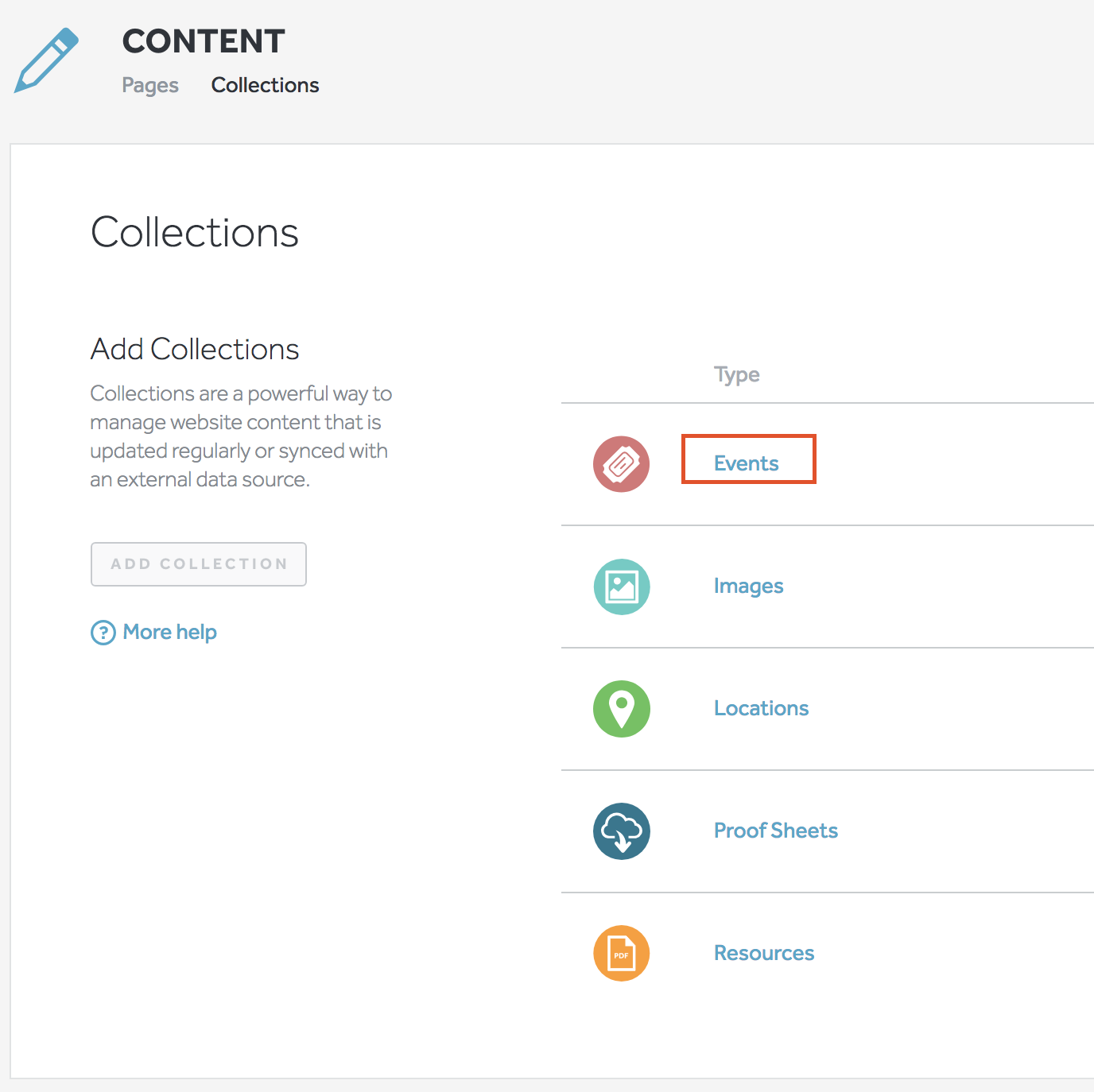
- Select Collections
- Select Events
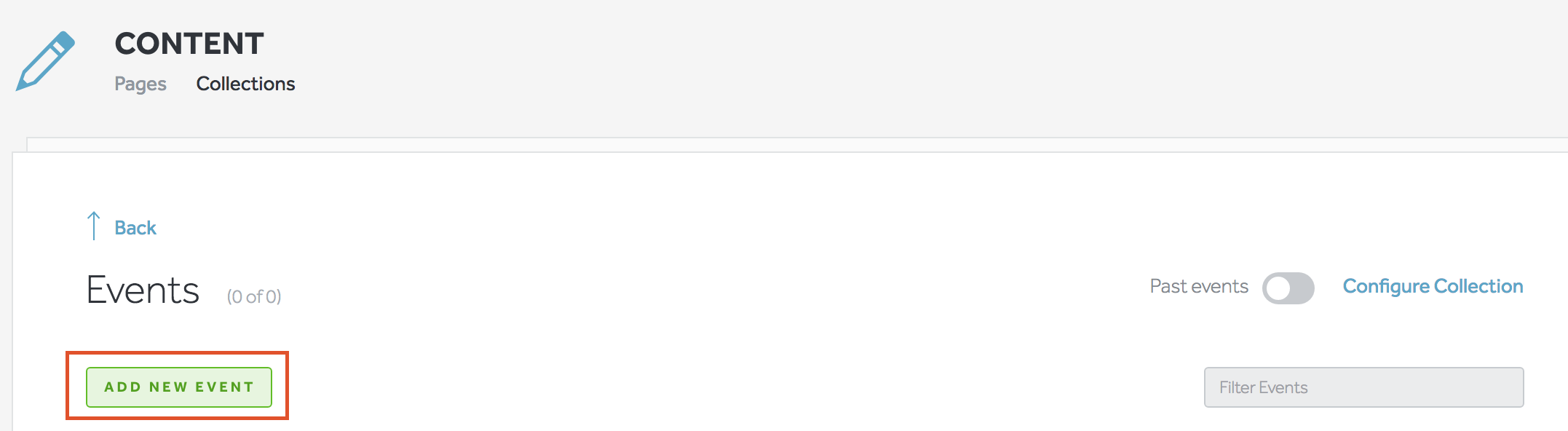
- Select the Add New Event button to immediately add a new event
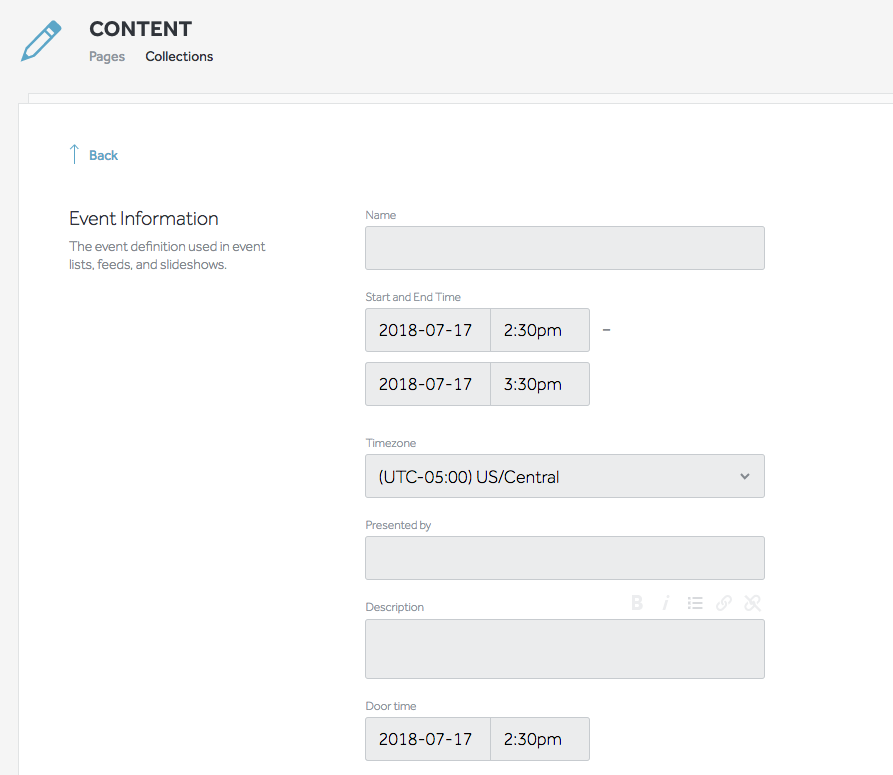
- It will open an area for you to input your Event information. This area will allow you to enter your basic event details.
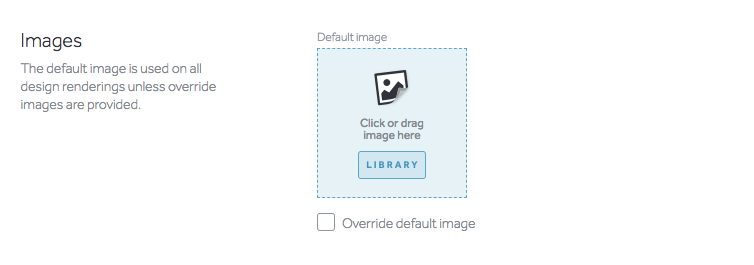
- Below Event Information, you will see an area for Images. You are able to upload a default image or choose an existing one from your library here.
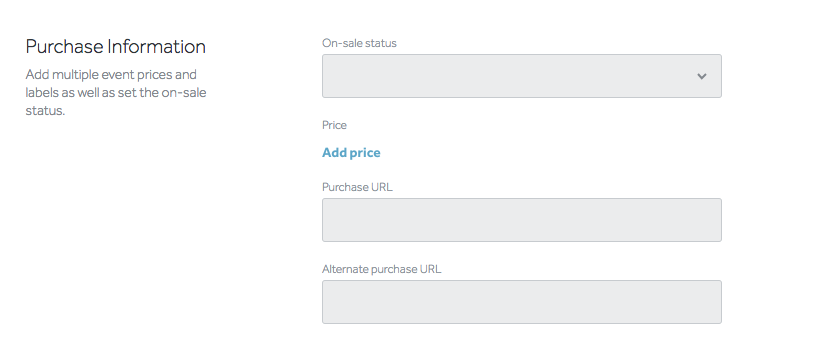
- Under Purchase Information select the ticket sales information.
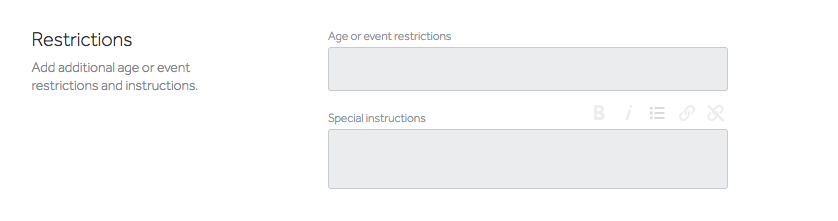
- Enable age restrictions and special instructions for your event in the Restrictions area.
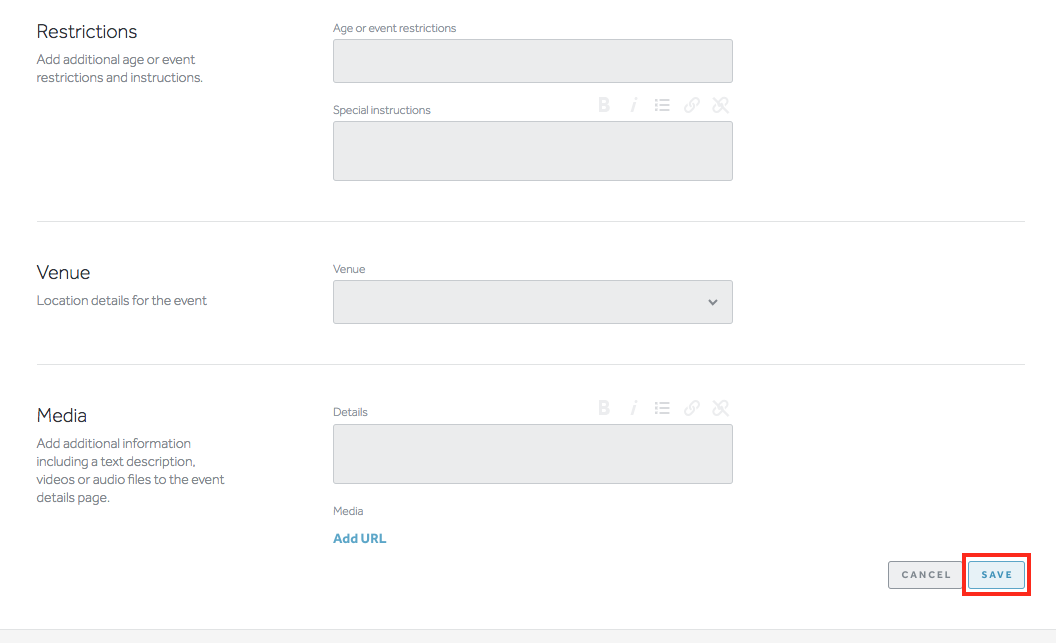
- Select your Venue under this dropdown. You may add new or more locations from the Collections area in your dashboard.

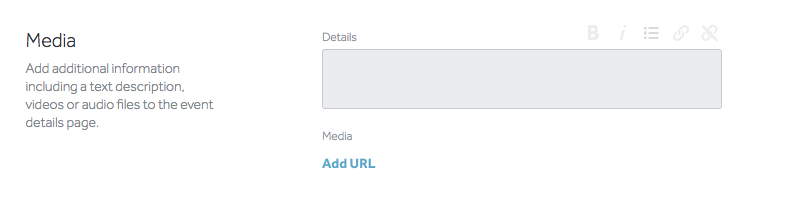
- Under Media, add any URLs or extra information that you need to include in the event page.
- Select Save to successfully add your event to the site.
- After the event is saved it will show up in your Events area.